Scheduling a meeting across time zones gets difficult when you treat it as simple clock arithmetic. The safest approach is to choose the exact meeting date, identify each person's real location or geographic time zone, compare their working hours, check daylight saving rules for that date, and then create the calendar event with the correct time zone attached to it.
I avoid relying on statements such as "London is always five hours ahead of New York" because that difference can change during the year. Different countries start and end daylight saving time on different dates, and some countries do not change their clocks at all.
For a quick comparison, you can use the CurrentDateTime Time Zone Converter to compare locations for the actual meeting date instead of calculating every offset manually.
The Simple Process I Use
When I need to coordinate people in different parts of the world, I work through these steps:
Follow this workflow to eliminate 1-hour DST errors and calendar-date mismatches:
That may sound like more work than simply adding or subtracting a few hours, but it prevents most of the mistakes that cause people to join an hour early, an hour late, or on the wrong calendar date.
Start With Locations, Not Just Time Zone Abbreviations
The first thing I want to know is where each participant actually is. Suppose someone tells you: "I am in CST." That may not be precise enough for international scheduling. Time-zone abbreviations can be reused or misunderstood, while geographic zones contain the rules that determine how a location's clock changes over time.
The IANA Time Zone Database records local-time history and rules for representative locations around the world. It is updated when governments change UTC offsets, daylight-saving rules, or time-zone boundaries.
For practical scheduling, I prefer information such as: New York, United States; London, United Kingdom; Lahore, Pakistan rather than relying only on: EST, GMT, PKT.
Using cities makes it easier for a proper converter or calendar system to determine the correct local time for the chosen date. You can look up cities and countries through the CurrentDateTime World Clock when you need to confirm their local time or time-zone information.
Why the Meeting Date Matters
A time-zone difference is not always fixed throughout the year. This is one of the biggest reasons international meetings go wrong.
Consider a U.S. location that observes daylight saving time. Under current U.S. rules, the local offset changes when daylight saving time begins and ends. NIST explains that in 2026 U.S. daylight saving time runs from March 8 until November 1.
Another country may change its clocks on different dates or may not change them at all. That means: New York to another city today may not have the same time difference as: New York to that city three months from now. This is why I always enter the actual meeting date into the converter. A current-time comparison is useful for a call happening today, but it is not enough for a meeting scheduled months in advance.
Current Time Is Not the Same as Future Meeting Time
This distinction is easy to miss. Imagine that you check the current time in two cities and see a five-hour difference. You then schedule a recurring meeting three months in advance based on that difference.
If one city changes from daylight time to standard time before the other city changes its clocks, the difference may temporarily become four or six hours instead. The meeting itself has not moved. The relationship between the local clocks has changed.
For future meetings, use the selected event date in the CurrentDateTime Time Zone Converter rather than simply checking the two clocks today.
Find the Working-Hour Overlap
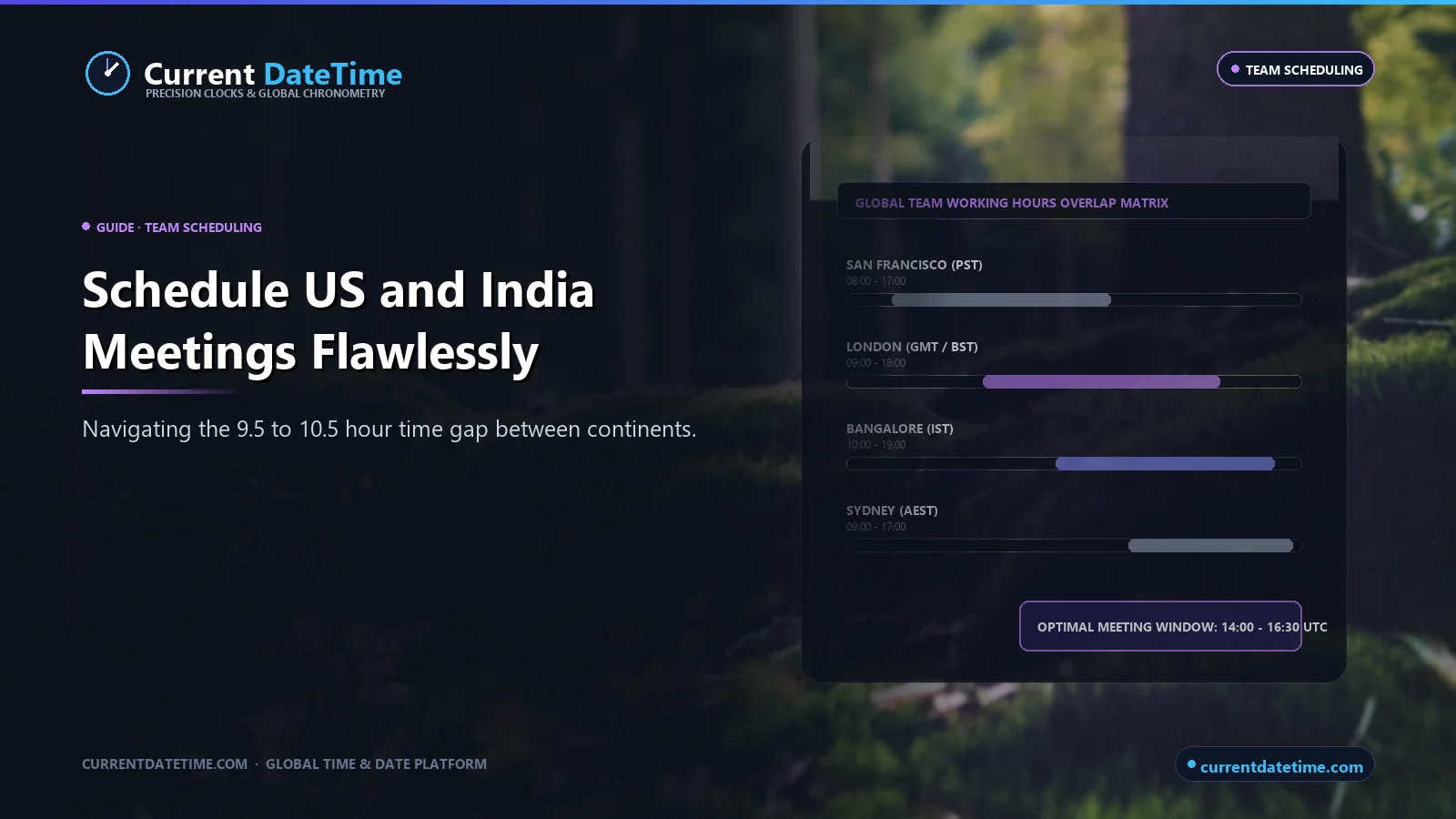
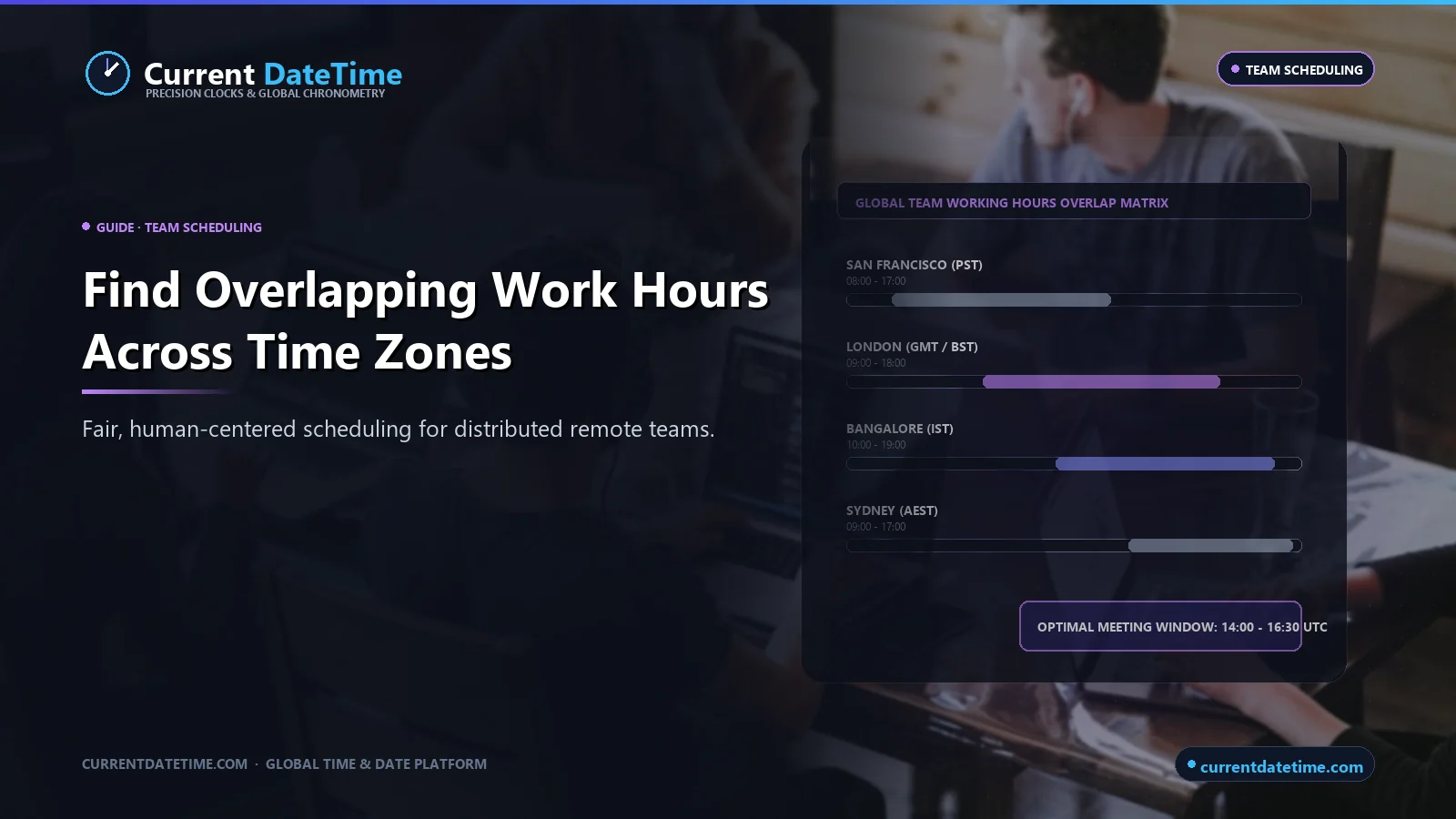
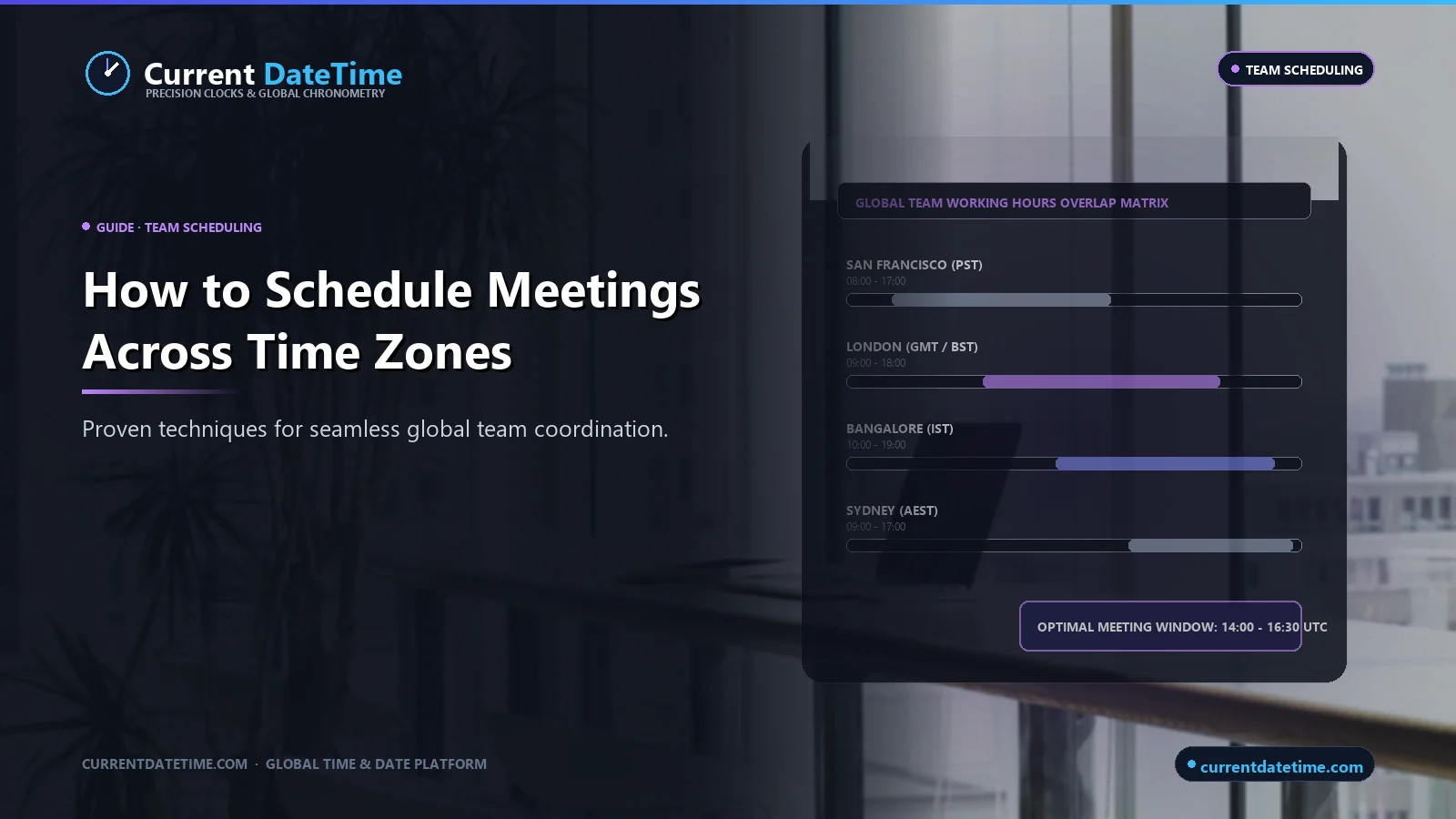
Once I know the correct local times, I look for the period when participants are reasonably available. Suppose three people normally work:
| Participant | Location | Local Working Hours |
|---|---|---|
| Alex | New York | 9:00 AM to 5:00 PM |
| Sarah | London | 9:00 AM to 5:00 PM |
| Hamza | Lahore | 9:00 AM to 6:00 PM |
The goal is not simply to find any time when all three people are awake. I want to find a window that respects their working day as much as possible.
That is the real difference between converting time zones and scheduling across time zones. A converter answers: "What time is 10:00 AM New York in London?" A scheduling process asks: "Is that converted time actually reasonable for everyone attending?"
Tools such as World Time Buddy and Savvy Time have built their products around side-by-side time-zone comparisons and working-hour visibility, which reflects how important this second question has become for international teams. (worldtimebuddy.com) (savvytime.com)
A Practical Three-City Example
Let's use a meeting between: New York, London, Lahore.
The correct conversion depends on the actual meeting date because New York and London both use seasonal clock changes, while Pakistan does not currently use the same seasonal clock-change system. Rather than memorizing something like: "London is five hours ahead of New York", I would enter all three cities and the meeting date into the time zone converter.
Then I would look at the results as working hours rather than just isolated clock values. For example, a time that is comfortable in New York may already be late evening in Pakistan. Moving the meeting a couple of hours earlier might make the meeting manageable for everyone.
The "best" meeting time is therefore not always the mathematical center of the time zones. It is the time that causes the least disruption for the actual people attending.
Think About the Date Change Too
Time-zone scheduling is not only about the hour. Sometimes the converted time falls on the previous or next calendar day.
Imagine a meeting scheduled late in the afternoon in North America for someone joining from Asia-Pacific. Their local time might already be: tomorrow morning. Similarly, an early morning meeting in Asia may still fall on the previous evening in the Americas.
This becomes especially important for:
- Monday morning meetings
- Friday afternoon calls
- month-end deadlines
- webinars
- product launches
- interviews
- live broadcasts
- travel coordination
Always check both the time and the date shown for every location.
Daylight Saving Time Is the Biggest Source of One-Hour Errors
If a meeting is off by exactly one hour, daylight saving time is often the reason.
UTC itself does not move for daylight saving time. Instead, locations that observe DST change their relationship to UTC. NIST explains, for example, that Eastern Standard Time is UTC-05:00 while Eastern Daylight Time is UTC-04:00.
So New York may be: UTC-05:00 during standard time and: UTC-04:00 during daylight time. If another country does not change its clock on the same day, their usual time difference changes. This is why manually writing a recurring international meeting as "every Tuesday at 3 PM EST" can cause trouble if what you really mean is "3 PM local time in New York."
Use ET Instead of EST When You Mean Eastern Local Time Generally
This comes up often in U.S. scheduling. EST and EDT do not mean the same thing:
- EST = UTC-05:00 (Standard Time, winter)
- EDT = UTC-04:00 (Daylight Saving Time, summer)
If a business operates from 9:00 AM to 5:00 PM according to the local Eastern clock throughout the year, writing: 9:00 AM to 5:00 PM ET is often clearer than calling the schedule EST all year. The abbreviation ET can represent the applicable Eastern local time, while EST and EDT identify the specific standard or daylight version. This is particularly useful for recurring meetings that continue through seasonal clock changes.
Avoid Fixed UTC Offsets for Recurring Local Meetings
A UTC offset such as: UTC-05:00 is precise for an instant, but it does not automatically tell you that a location might later move to UTC-04:00. That is why I prefer geographic time zones for recurring meetings.
The IANA database stores time-zone rules for representative geographic locations and is periodically updated as governments change those rules. A city-based zone can therefore represent more than the current offset. It can also carry the relevant historical and future clock rules. For example, a properly configured calendar can understand that New York follows one offset during standard time and another during daylight time. A manually entered fixed offset cannot always do that.
Use UTC When You Need One Global Reference
There are situations where UTC is extremely useful. If you are coordinating:
- software deployments
- global broadcasts
- server maintenance
- aviation-related activity
- technical operations
- international deadlines
a single UTC time can provide an unambiguous global reference. For example: Meeting starts at 15:00 UTC. Everyone can then convert that instant into their local time. UTC is particularly useful when the event itself must happen at one fixed moment worldwide.
For normal recurring office meetings, however, I usually prefer assigning the event to the organizer's geographic time zone so the local wall-clock time can remain consistent when DST changes.
If you're unfamiliar with the distinction between GMT and UTC, see our guide to UTC vs GMT before relying on those terms in international invitations.
Let the Calendar Store the Time Zone
Once you've chosen the meeting time, do not send only a plain-text message such as: "Meeting tomorrow at 4 PM." A calendar invitation is much safer because the event can contain timezone information that each participant's calendar uses to display the correct local time.
Google Calendar allows users to create events with a selected time zone and can also display secondary time zones and a world clock. Google explains that you can select a city or country as the event's time zone when creating the event. (support.google.com)
Microsoft Outlook similarly allows organizers to set a time zone for a meeting or appointment rather than relying only on their default calendar zone. (support.microsoft.com) This greatly reduces the chance that participants will manually convert the meeting differently.
How to Schedule Across Time Zones in Google Calendar
Google Calendar can handle time zones directly. Google's official instructions allow you to choose a different time zone when creating an event. You can also display a secondary time zone or add locations to the Calendar world clock. (support.google.com)
A practical workflow is:
- Work out the meeting time using the CurrentDateTime Time Zone Converter.
- Create the event in Google Calendar.
- Open the time-zone option beside the event time.
- Choose the correct location or time zone.
- Add attendees.
- Check the date and local time again before sending.
Participants should then see the meeting according to their own calendar settings.
How to Schedule Across Time Zones in Outlook
Outlook also has useful scheduling tools for international teams. Microsoft's Scheduling Assistant displays attendees' free and busy periods and notes that it can be especially helpful when participants are in different time zones. (support.microsoft.com)
Outlook also allows additional time zones to be displayed in Calendar views, and organizers can select the time zone associated with a meeting. (support.microsoft.com)
If the group is large and you do not know everyone's availability, Outlook's Scheduling Poll can also help identify a suitable slot. Microsoft states that its scheduling poll takes daylight saving time into account for meetings after seasonal clock changes. (support.microsoft.com)
The general principle is the same whichever calendar platform you use: calculate first, attach the correct zone to the event, then verify before sending.
Respect Working Hours, Not Just Time Zones
A technically correct meeting can still be a bad meeting time. If one person has to join at 11:30 PM every week while everyone else attends during normal office hours, the conversion may be correct but the scheduling is not fair.
For international teams, I recommend agreeing on reasonable boundaries:
- Preferred: 8:00 AM to 6:00 PM
- Occasionally acceptable: 7:00 AM or 7:00 PM
- Avoid for recurring meetings: very early morning or late night
The exact limits depend on the team's working arrangements, but making them explicit helps everyone evaluate proposed times consistently.
Rotate Inconvenient Times for Global Teams
Sometimes there is no perfect overlap. A team spread across the Americas, Europe and Asia-Pacific may simply have no time that falls inside everyone's normal working day.
In that case, I prefer rotating the inconvenience instead of permanently assigning it to one region:
- Week 1 may favor North America.
- Week 2 may favor Asia.
- Week 3 may favor Europe.
The purpose is not to make every meeting equally inconvenient. It is to prevent one group from consistently carrying all of the burden. This is especially important for recurring team meetings, planning sessions and company-wide calls.
Ask Whether the Meeting Needs to Be Live
Another question competitors often skip is: Does everyone actually need to attend at the same time? If there is no reasonable overlap, an asynchronous approach may be better.
Instead of forcing ten people onto a call at uncomfortable hours, you might use:
- a written project update
- recorded video
- shared document
- task tracker
- recorded presentation
- comments with a response deadline
Then reserve live meetings for decisions or discussions that genuinely benefit from real-time conversation. Good time-zone scheduling is not just finding a less bad hour. Sometimes the better solution is not holding a synchronous meeting at all.
Be Careful With Recurring Meetings
One-time meetings are easier because you only need to calculate one date. Recurring meetings introduce another question: What happens after the next clock change?
Suppose New York and London have a weekly meeting. The United States and United Kingdom do not always change their clocks on the same dates. During the gap between their DST transitions, the usual difference between the cities can temporarily change.
If the calendar event is created with proper geographic time-zone data, the system can generally apply the rules associated with the event. If you simply wrote down a fixed conversion months earlier, you may miss the change.
For recurring international meetings, I recommend checking:
- the next U.S. DST transition
- the next European or UK transition, if relevant
- whether any participant's country does not observe DST
- how the calendar defines the meeting's original zone
The IANA database exists partly because civil-time rules can be changed by political decisions, so timezone-aware software needs updated rule data rather than a permanent list of simple offsets.
Send Both the Calendar Invite and a Clear Written Time
For important meetings, I like to include the time clearly in the invitation description as an extra check. For example: Thursday, September 10; 10:00 AM New York; 3:00 PM London; 7:00 PM Pakistan.
The actual values must be checked for that specific date before sending. This gives people a quick visual confirmation without forcing them to interpret an abbreviation.
For especially important events, you can also include a UTC reference. For example: 14:00 UTC. The calendar event should still contain the proper timezone information. The written conversion is simply a useful confirmation.
Avoid Saying Only "Tomorrow at 3 PM"
Relative wording can create surprising problems when participants are already on different dates. If it is late Monday evening for someone in California, it may already be Tuesday in parts of Asia. So: "Let's meet tomorrow" can technically refer to different calendar dates depending on who reads it and when.
For international communication, I prefer writing the actual date: Wednesday, September 16 at 3:00 PM Eastern Time. That removes one layer of ambiguity.
Watch Out for 12 AM and 12 PM
Time zones are already enough to think about. Do not add avoidable AM/PM ambiguity. 12:00 AM means midnight. 12:00 PM means noon.
For important international events, writing: 12 noon or: 12 midnight can be even clearer. You can also use a 24-hour format such as: 12:00 for noon and: 00:00 for midnight. If participants use different clock formats, CurrentDateTime's time tools can help you compare local times before sending the invitation.
Use 24-Hour Time When It Makes Communication Clearer
The 24-hour clock is useful for international scheduling because it avoids AM and PM confusion. Instead of: 7:00 PM, you can write: 19:00. Instead of: 7:00 AM, you write: 07:00. This is particularly useful for technical teams, travel, international operations and situations where misreading AM as PM would be costly. You do not have to force everyone to use 24-hour time, but including it alongside the local time can improve clarity.
A Good International Meeting Invitation
A clear invitation might look like this:
| Invitation Field | Example Entry | Purpose / Verification |
|---|---|---|
| Meeting Title | Project Review | Clear objective |
| Event Date | September 16, 2026 | Unambiguous calendar date |
| New York (ET) | 10:00 AM EDT | Organizer local time |
| London (UK) | 3:00 PM BST | Attendee local converted time |
| Lahore (PKT) | 7:00 PM PKT | Attendee local converted time |
| Global Reference | 14:00 UTC | Universal absolute instant |
The exact conversions should be calculated for September 16 rather than copied from today's offsets. Then attach the calendar event with the organizer's real geographic time zone. This format gives participants several ways to confirm that they have the correct meeting.
Common Mistakes When Scheduling Across Time Zones
A Better Workflow for Recurring Global Meetings
For a recurring international meeting, I recommend a slightly more careful process:
- First, establish where everyone is located and what hours they normally work.
- Next, identify a workable overlap using the CurrentDateTime Time Zone Converter.
- Then check whether any of those locations observe daylight saving time.
- Look at the dates of upcoming transitions.
- If the meeting needs to remain at a fixed local time for one office, create it using that office's geographic timezone.
- If fairness matters more than a fixed local time, agree on how the meeting will move or rotate when the offsets change.
- Finally, review the schedule whenever a participant changes location or a country changes its timezone law.
Do Time Zone Rules Ever Change?
Yes. Time zones are created and regulated through political and administrative decisions rather than natural boundaries alone.
The IANA Time Zone Database says it is updated periodically to reflect changes to timezone boundaries, UTC offsets and daylight-saving rules made by political bodies.
That means a conversion rule that was correct years ago is not guaranteed to remain correct forever. For important future scheduling, use maintained timezone data rather than an old printed offset table.
Which Time Zone Should Be the Meeting's Main Time Zone?
There is no single rule that works for every meeting.
- For a meeting organized around one office, I usually use that office's geographic timezone.
- For a global event with no natural home location, UTC can be useful as a common reference.
- For a recurring team meeting, choose the timezone that best represents how the schedule should behave after seasonal clock changes.
The most important point is consistency. Everyone should know whether the meeting is intended to stay at: 10:00 AM New York local time or: 15:00 UTC. Those are not always the same scheduling rule across an entire year.
Should I Use UTC for Every International Meeting?
Not necessarily. UTC is excellent when you need one fixed global instant. It is less intuitive for participants who think in their local office hours.
For a one-time international webinar, providing UTC as a reference can be very helpful. For a weekly New York team meeting that should always happen at 10:00 AM New York time, using the New York timezone is usually more natural than fixing it permanently at a UTC time.
The right choice depends on what you want to keep constant: the local wall-clock time or: the global UTC instant.
How to Schedule a Meeting Across Three or More Time Zones
With two locations, you can often compare the clocks mentally. With three or more, I strongly recommend using a proper converter.
Enter every participant's location into the CurrentDateTime Time Zone Converter, choose the actual meeting date, and compare the local times together. Then eliminate slots that create: very early mornings, late evenings, lunch conflicts, next-day confusion, and weekend conflicts. If no reasonable slot remains, rotate meeting times or switch some updates to asynchronous communication. The more locations you add, the less useful manual arithmetic becomes.
Choose the exact meeting date, identify each person's city or geographic timezone, compare them with a date-aware converter, find overlapping working hours, and send a calendar invitation with a real timezone attached. Google Calendar and Outlook both support timezone-aware event creation. (support.google.com) (support.microsoft.com)
Convert each person's normal working hours into the same view and look for the overlap that causes the least inconvenience. If there is no reasonable overlap, consider rotating times or using asynchronous communication.
I prefer cities or geographic time zones because they can represent location-specific daylight-saving rules. The IANA Time Zone Database tracks local-time rules and is updated when governments change them.
Daylight saving time is a common reason. Different locations may change their UTC offsets at different times of the year. NIST confirms that UTC itself does not observe DST while participating local zones change their offsets.
Yes. Google Calendar allows you to create events in selected time zones, display a secondary time zone, and add zones to its world clock. (support.google.com)
Yes. Outlook supports selecting meeting time zones, and its Scheduling Assistant shows attendee availability and can be useful for participants in different time zones. (support.microsoft.com)
UTC is useful when the meeting must occur at one fixed instant worldwide. A geographic local timezone is usually better when the event should stay at the same local hour through seasonal clock changes.
Not necessarily. If the same time repeatedly forces one region into very early or late hours, rotating the meeting can be fairer.
The Most Reliable Way to Schedule Across Time Zones
I would reduce the whole process to one rule:
Do not schedule from a memorized time difference. Schedule from the locations and the actual date.
Find each participant's real timezone, choose the meeting date, compare working-hour overlap, check DST, and let the calendar store the event's timezone.
That prevents most of the problems that make international scheduling frustrating.
For your next meeting, start with the CurrentDateTime Time Zone Converter. Add the relevant locations, select the actual date, compare the local times, and then create the calendar invitation only after you have confirmed that the slot works for everyone.